Adding Disclosures to a Web Page
All pages of the website have an optional disclosure section.

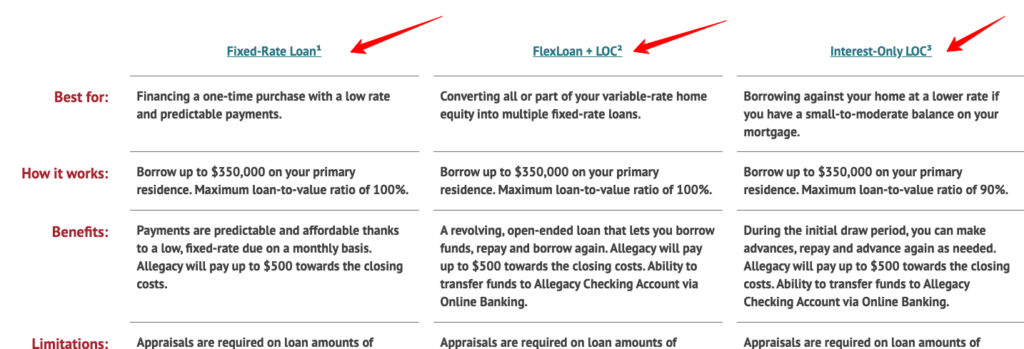
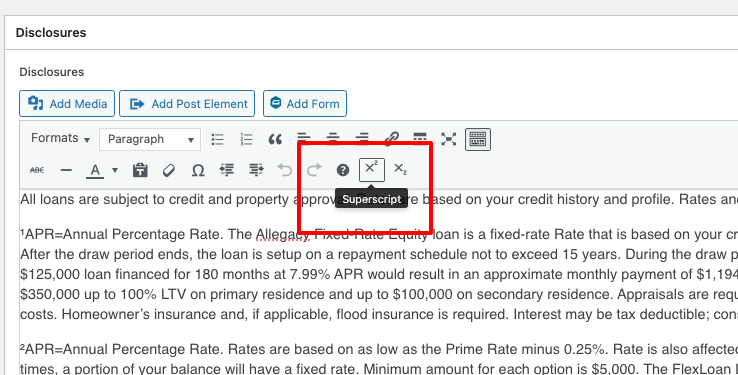
To add superscripts, you can use the “superscript” option in the content editors. See below.
Adding Disclosures to the Footer
In the footer section of the site there is a link to the full page of Disclosures. See the section on how to link to a document file (or PDF) to add new disclosures.
Anchor link to Disclosures in the Footer
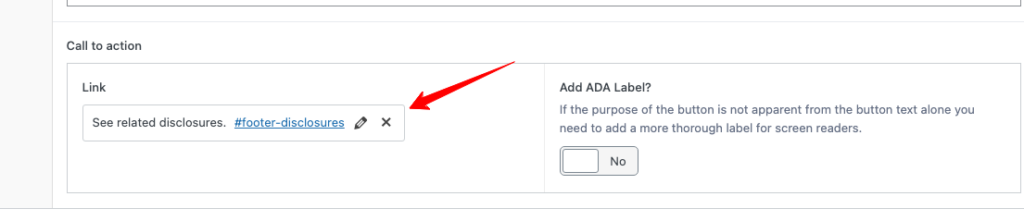
If you would like to quickly jump the reader down the page for the full list of disclosures in the footer, use the shortcode anchor of “#footer-disclosures” For example, on the page Home equity loans page, the “see related disclosures” link below the comparison table, jumps down to the footer area by adding “#footer-disclosures” to the call to action link. See below:
And on the live site

Anchor link to disclosures from the comparison table
If you would like to anchor a comparison table header to the footer area, you will have to use a different shortcode to accommodate this behavior. For example, on the Home Equity Loans page, scroll down to the comparison table and you will notice that each column header, such as “Fixed-Rate Loan”, anchor link to the disclosures at the bottom of the page.
In order to do this, use the shortcode [go_to_disclosures]. See screenshot below of how this looks in the admin area.

On the front-end, these column headers will display as links. Screenshot below.