
Adding a Blog Post
To create a new blog post, you can click either at the top of the Dashboard where it says +New > Post.
You can also click Posts in the lefthand toolbar and then click “Add New.”
You will then see this screen.

Add the title in the upper text section, and the body content goes in the large text section.
The “Categories” section on the righthand side helps users find content, so choose a category for each post. To reference deeper strategy on Allegacy’s blog categories, view the document found on our server: Marketing/File03Items/graphic_design/xRECENT_ARCHIVED_FILES/Online Channels/Web Sites/_Content Strategy
The way we define our categories is described below:
- Save + Spend (Anything related to Checking, Savings, Cards and Ways to Pay, Digital Services)
- Borrow + Buy (Anything related to Loans)
- Buying a Car
- Homeownership
- Financial Planning
- Business
- Business Banking
- Benefit Solutions
- Payroll
- About Us
- Community (Community Involvement, Political Action, Scholarships)
- Culture (Employee Features, Careers, Organizational Initiatives + Announcements)
- Newsletter (Sharelines)
- Learn
- Budgeting
- Security
- Wellness (Financial Tools, Tips, Resources that would also make sense living on this page)
Add a Sidebar Promo! Excerpt below from SmartBlog Content Strategy Document: Choose “From Promotion” radio button and then use the drop-down to choose your promo. Those with SBS in the title represent promos that can and should be chosen for display. When selecting your promo, please use the following methodology:
- Top 5 most-read posts – use “Join” message
- Posts about Specific Topics – use Auto, Mortgage, Checking, Credit Card, Investment Group, Culture, Business or Money Market when relevant
- Posts about Other Topics – alternate equally between the Sign Up for Emails, EVERFI, Schedule Appointment and Digital Services messages, giving precedence to some when relevant. Ex: If the blog mentions talking with Allegacy Staff use the Schedule Appointment SBS –or– if the blog mentions using a digital service, use the Digital Service SBS.
When you are ready to publish, click “Publish” on the righthand side.
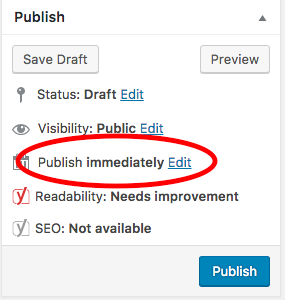 If the post is done but you’d like it to be published at a later time, look in the Publish box on the righthand side and find where it says “Publish Immediately.” Click “Edit,” and you will then be able to choose a specific date and time for the post to publish to the web.
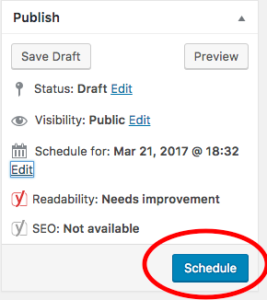 Click OK, and the “Publish” button at the bottom will become a “Schedule” button. Click “Schedule,” and you’re all set!
 Print This Post