Managing vanity urls
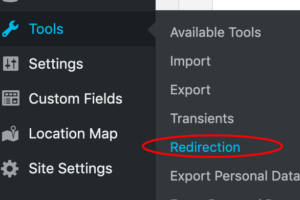
All vanity urls or redirects are managed in Tools > Redirection.
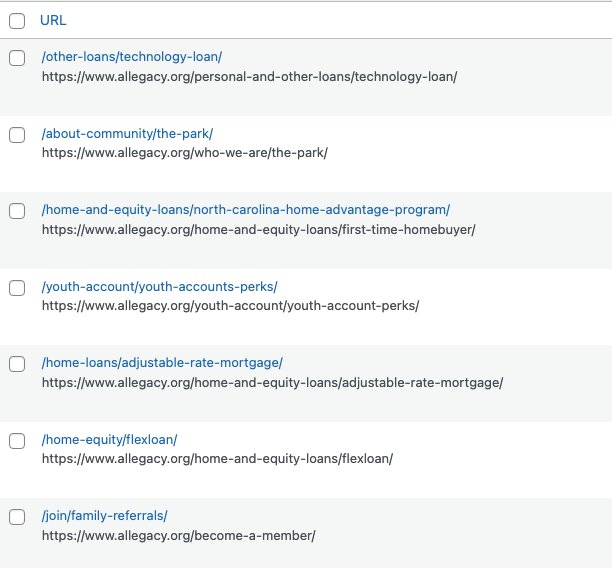
You will see a big list of all of your existing redirects.
Adding new redirects
Before entering a new redirect, double check to make the redirect is not currently being used by doing a quick search.

If it’s not being used then select “Add New” at the top of the page.
Enter in the following fields:
- Source URL = the relative URL you want to redirect from. User Note 9/23/20: In practice, this is most often the URL that you want the vanity URL to be.
-
- IMPORTANT: leave off the domain (i.e, https://www.allegacy.org in the source URL)
- Query Parameters= always adjust this to “ignore & pass parameters to the target”
- Target URL = the destination URL or where you want to direct to that needs to include the full domain (i.e, “https://www.alleagcy.org”) User Note 9/23/20: In practice, this is most often the URL that you want the vanity URL to go to.
- Group = always leave this as the default group of “redirections”
- Use the drop down to the right hand side and select “ignore case” and “ignore slash”
- Select “add redirect”

- Test to make sure it works by opening a new browser and entering the source url to see if the redirect works. If it’s not displaying yet then go to the “dashboard” section and select “purge all caches”. Test again after clearing the cache.

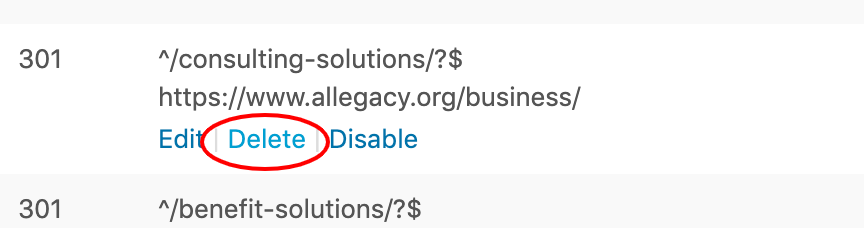
Deleting a redirect
Search for the redirect that you want to delete. Hover over it and select “delete” Hover over the redirect you would like to delete